How to Connect Bouncie and Fleetio: A Step-by-Step Setup Guide
Managing a fleet gets easier when your tools share the same data. Vehicle data is most useful when it moves quickly from the road into the tools your team already uses, without requiring manual entry or switching systems.
The Bouncie and Fleetio integration is built to do exactly that. With this integration, Bouncie can send real-time vehicle data into Fleetio so fleet managers and maintenance teams have access to more accurate information without relying on manual updates.
Once connected, Bouncie sends data including GPS location, odometer readings, battery voltage alerts, and diagnostic trouble codes into Fleetio automatically, giving fleet teams faster access to more accurate information.
What the Bouncie and Fleetio Integration Does
Fleetio is a fleet management platform built to handle maintenance scheduling, inspections, work orders, and operational reporting. Bouncie adds a real-time telematics layer by collecting vehicle activity and diagnostic data directly from connected vehicles. Fleetio describes Bouncie as a GPS and telematics integration that delivers real-time GPS tracking, driving insights, and diagnostics through OBD2 installation for fleet vehicles.
When the integration is connected, Bouncie sends vehicle data into Fleetio so that information can support maintenance and operational decisions. This helps reduce the need to move data manually between systems.
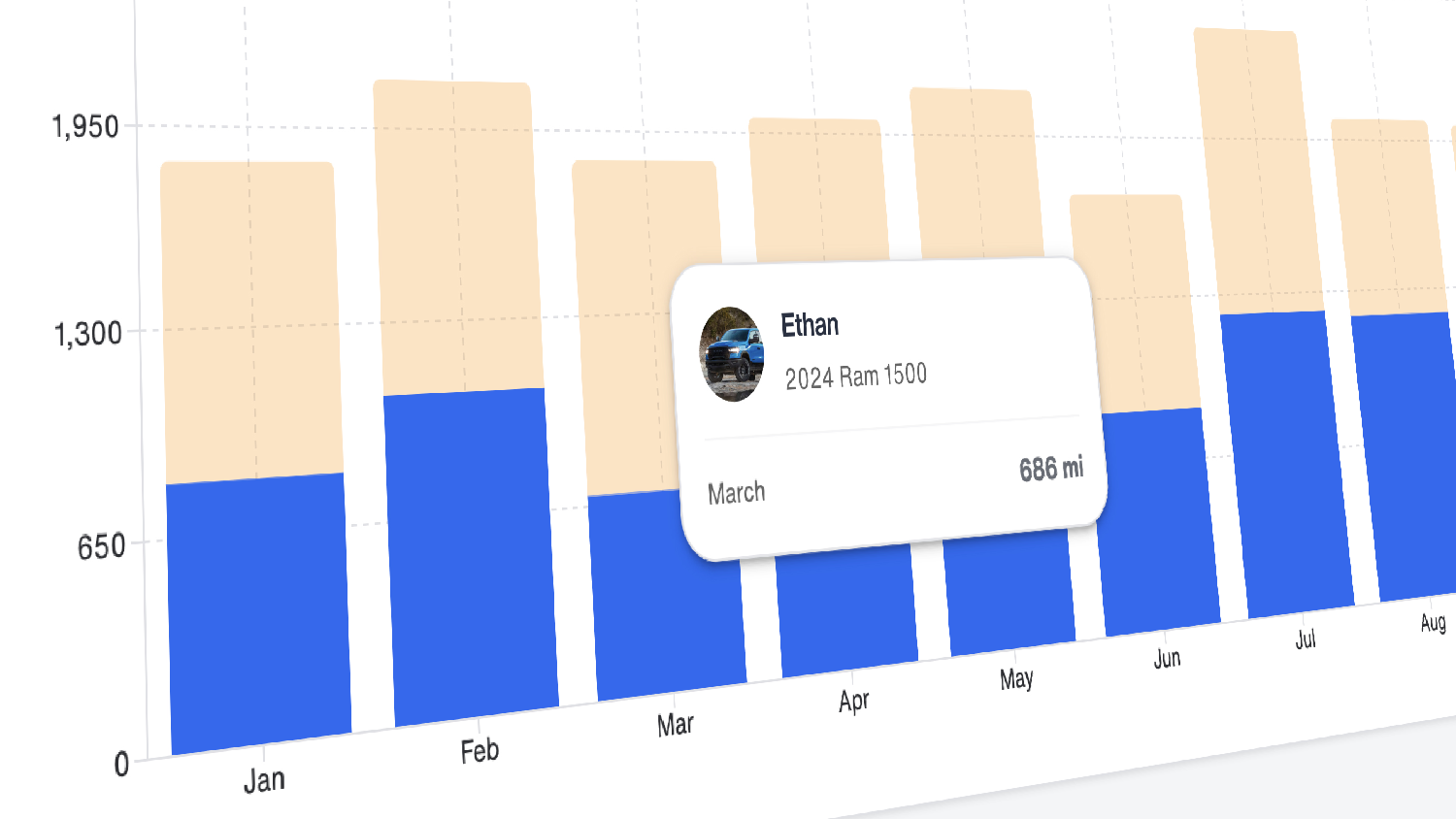
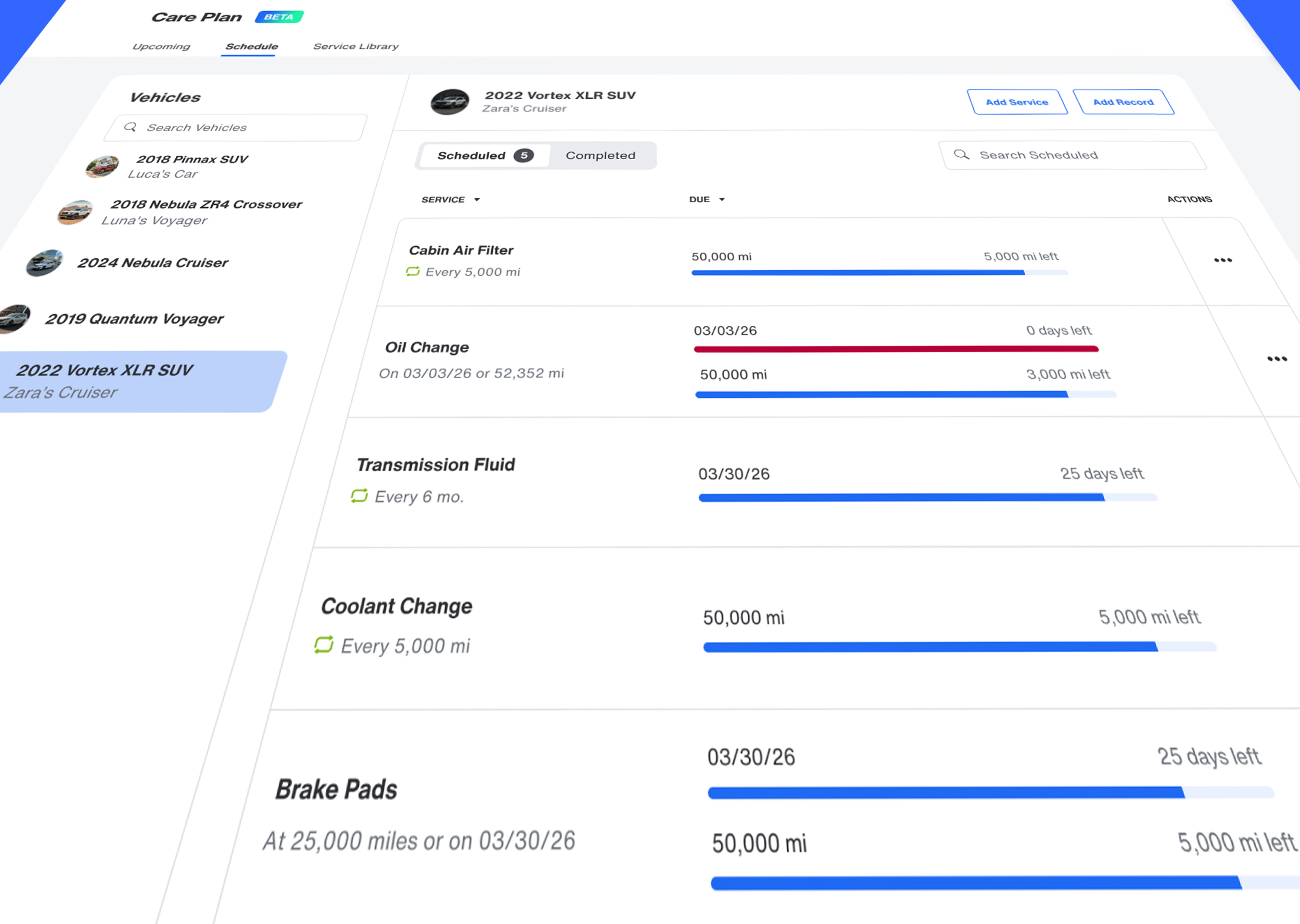
For example, odometer readings from Bouncie can become meter entries in Fleetio. That matters because many preventive maintenance schedules depend on accurate mileage. If mileage is updated manually, service schedules may be based on old information. When mileage syncs automatically, Fleetio has a clearer view of how each vehicle is being used.
The integration can also support vehicle health workflows. When Bouncie detects certain diagnostic trouble code events, Fleetio can create and manage corresponding faults. When a low battery voltage event is detected, Bouncie can create an issue in Fleetio with a battery label. These updates help turn telematics data into actionable maintenance information.
The real value of this integration is that vehicle activity, location, and health information flows directly into the system where fleet teams are already managing maintenance work. The goal is not simply to sync data, but to make that data actionable where it matters most.
What You Need Before You Begin
The setup process works best when a few things are already in place.
You will need an active Bouncie account and an active Fleetio account. You will also need access to Fleetio with admin permissions, since the setup requires creating an API key and copying your Fleetio Account Token. These credentials allow Bouncie to securely sync vehicle and fleet data with Fleetio.
It is also helpful to make sure your vehicles are already set up in the systems you plan to connect. Bouncie devices should be installed and reporting vehicle data, and your Fleetio account should include the vehicles you want to manage through the integration.
Before starting, gather or confirm the following:
- Your Fleetio admin login
- Access to Fleetio Settings
- Permission to create or manage API keys
- An active Bouncie login
- Vehicles available in Bouncie and Fleetio
- Bouncie devices installed in the vehicles you want to sync
Before starting, decide who on your team should manage the connection. API credentials provide access to fleet data and should be created and handled by someone your organization has authorized to manage third-party integrations.
Step 1: Log Into Fleetio
This first step is simple, but it is worth calling out because many setup issues begin with account permissions. If you do not see the settings or API options described in this guide, confirm that you are using an account with admin access.
Start by logging into Fleetio with an admin account. Once you are logged in, you should see your Fleetio dashboard. From there, you will navigate to the area where Fleetio manages API keys.
Step 2: Open Settings in Fleetio
From the Fleetio dashboard, use the left sidebar to find Settings. Depending on your screen size or account layout, you may need to scroll down in the sidebar to locate it.
Inside Settings, look for Manage API Keys. This is where Fleetio stores API keys for external integrations like Bouncie, and where you will create the API key needed for the integration.
This part of the setup creates the secure bridge between the two systems. The API key is what allows Bouncie and Fleetio to communicate. In plain terms, it gives Bouncie the authorization it needs to send approved vehicle data into your Fleetio account.
Step 3: Create a New Fleetio API Key
Once you are in Manage API Keys, create a new API key for the Bouncie integration.
Click the Add API Key button. Fleetio will open a modal where you can enter details for the new key. For the label, choose something easy to recognize later, such as Bouncie Integration. This is especially helpful if your organization uses multiple integrations or manages several API keys.
For the API version, select the default version provided by Fleetio unless your internal technical team has given you different instructions. Then click Save.
After saving, Fleetio will generate the API token. You will need this token in a later step when you add credentials to Bouncie.
It is a good practice to create a separate API key for each integration. This makes it easier to manage access over time. If your organization ever needs to revoke access for one integration, you can do that without affecting other connected tools.
Step 4: Copy Your Fleetio API Token
After the API key is created, find the new key in the list and copy the value under the Token column. This is your Fleetio API Token.
Copy it carefully. Extra spaces before or after the token can prevent the connection from working. If your organization's security practices allow it, paste the token somewhere temporarily to confirm that no extra characters were added. Otherwise, copy it directly into Bouncie when you are ready for the next step.
Keep this token secure. It provides access to Fleetio data, so it should be handled the same way your team handles other sensitive account credentials. Do not share it in unsecured messages or store it somewhere that is not approved by your organization.
Step 5: Copy Your Fleetio Account Token
The API Token is only one of the credentials required for setup. You will also need your Fleetio Account Token. On the same Manage API Keys page, scroll to the Account Tokens section. Find your account name and copy the value under Token.
The API Token authorizes Bouncie to connect with Fleetio. The Account Token identifies which Fleetio account should receive the data. Both are required for the integration to work correctly.
As with the API Token, copy the Account Token carefully. Missing characters or extra spaces are among the easiest setup mistakes to make.
Step 6: Open the Fleetio Integration in Bouncie
After copying your Fleetio credentials, log into Bouncie and open the Fleetio integration setup. From Bouncie.app, open the main menu and select Integrations.
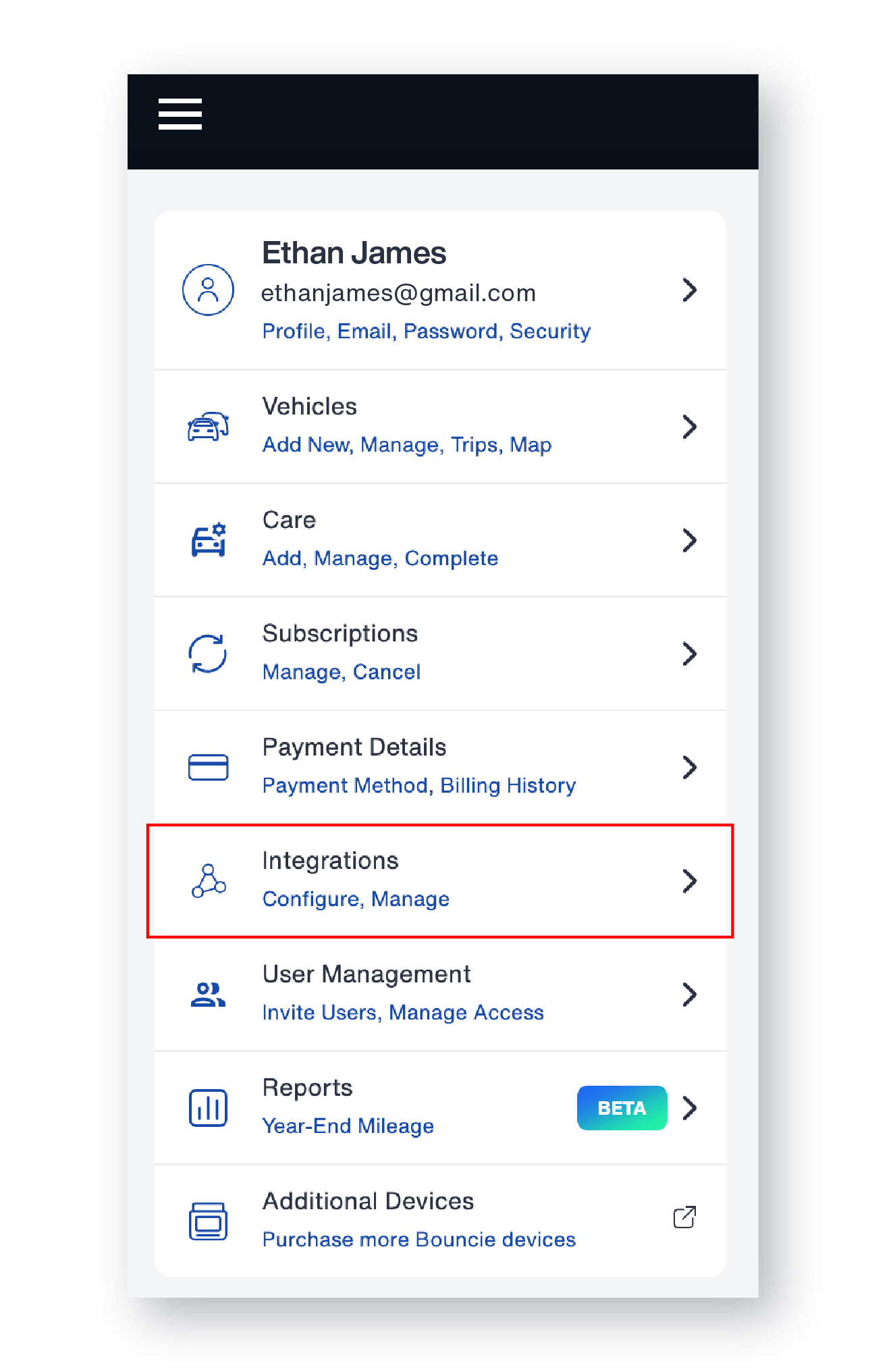
Find the Fleetio line item and click Connect. Bouncie’s Fleetio page outlines this connection flow, including opening Integrations, selecting Fleetio, and entering the required API Key and Account Token in Integration Settings.
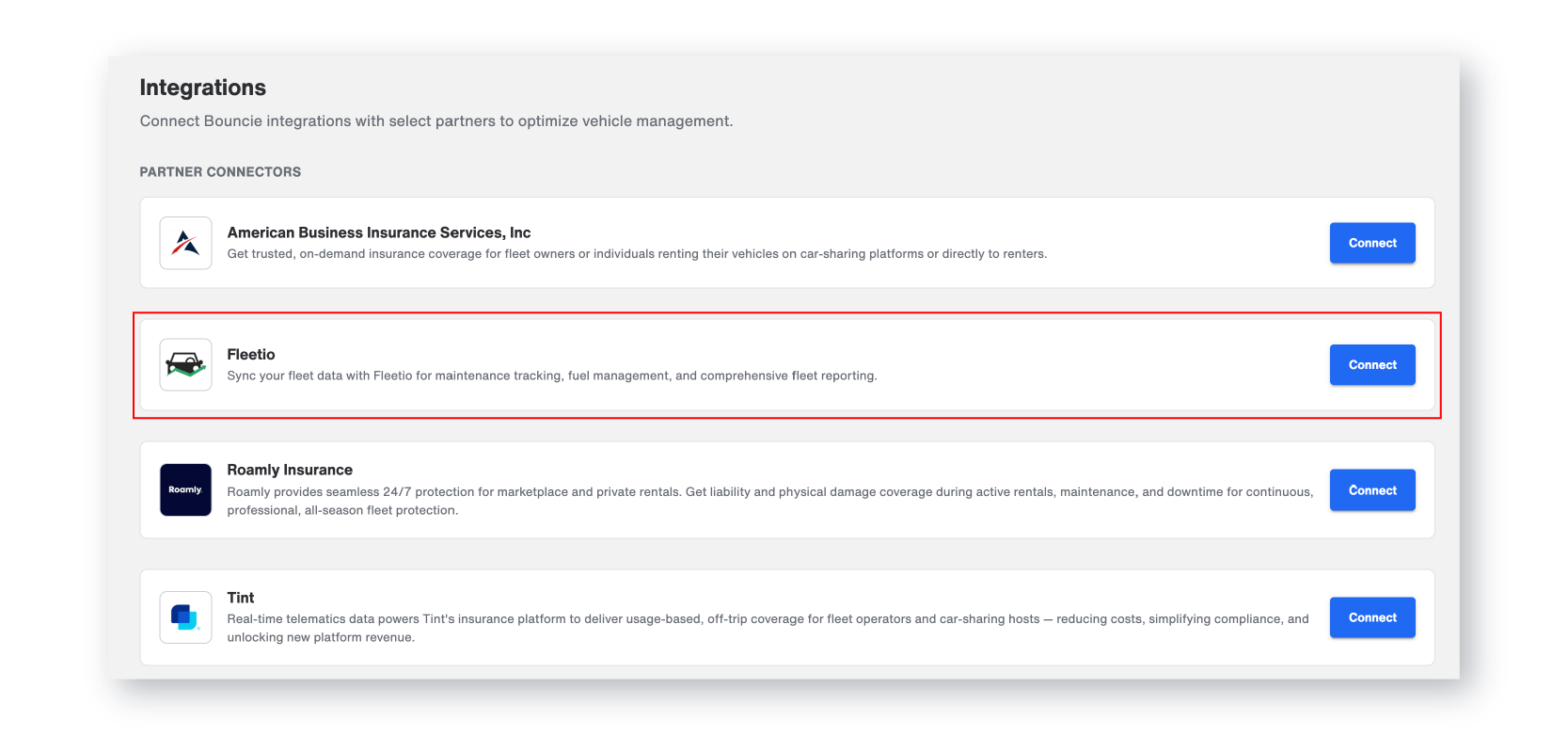
This is the point where the two platforms begin to come together. Fleetio generated the credentials, and Bouncie uses those credentials to establish the data connection.
Step 7: Enter Your Fleetio Credentials in Bouncie
In Bouncie’s Fleetio integration settings, paste the credentials you copied from Fleetio.
You will enter:
- Fleetio API Token
- Fleetio Account Token
After both fields are completed, save your changes. Once saved, Bouncie will begin syncing with Fleetio.
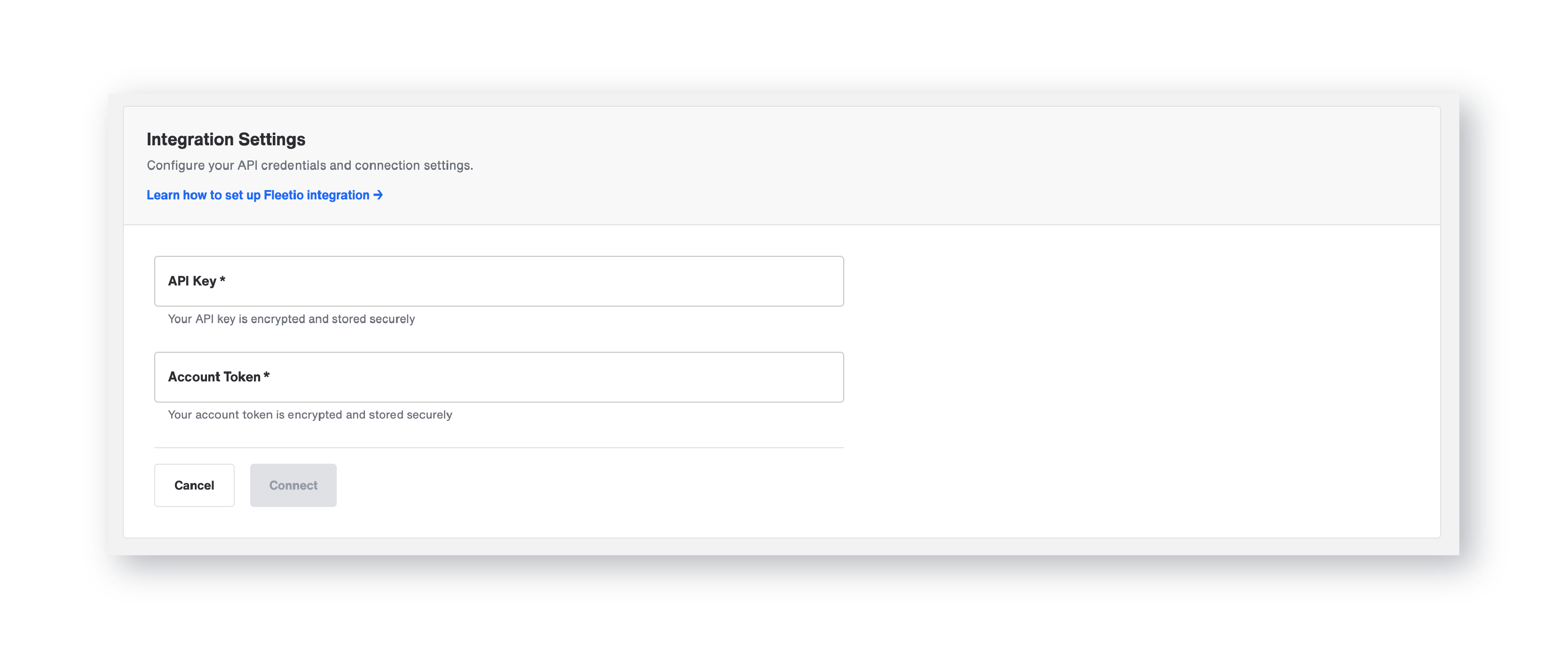
Before moving forward, take a moment to verify that both tokens were pasted completely and accurately. This is one of those small details that can save time later. If the integration does not connect, credentials are one of the first things to check.
Step 8: Review Available Vehicles
Once the credentials are saved, review the vehicles available for data sharing.
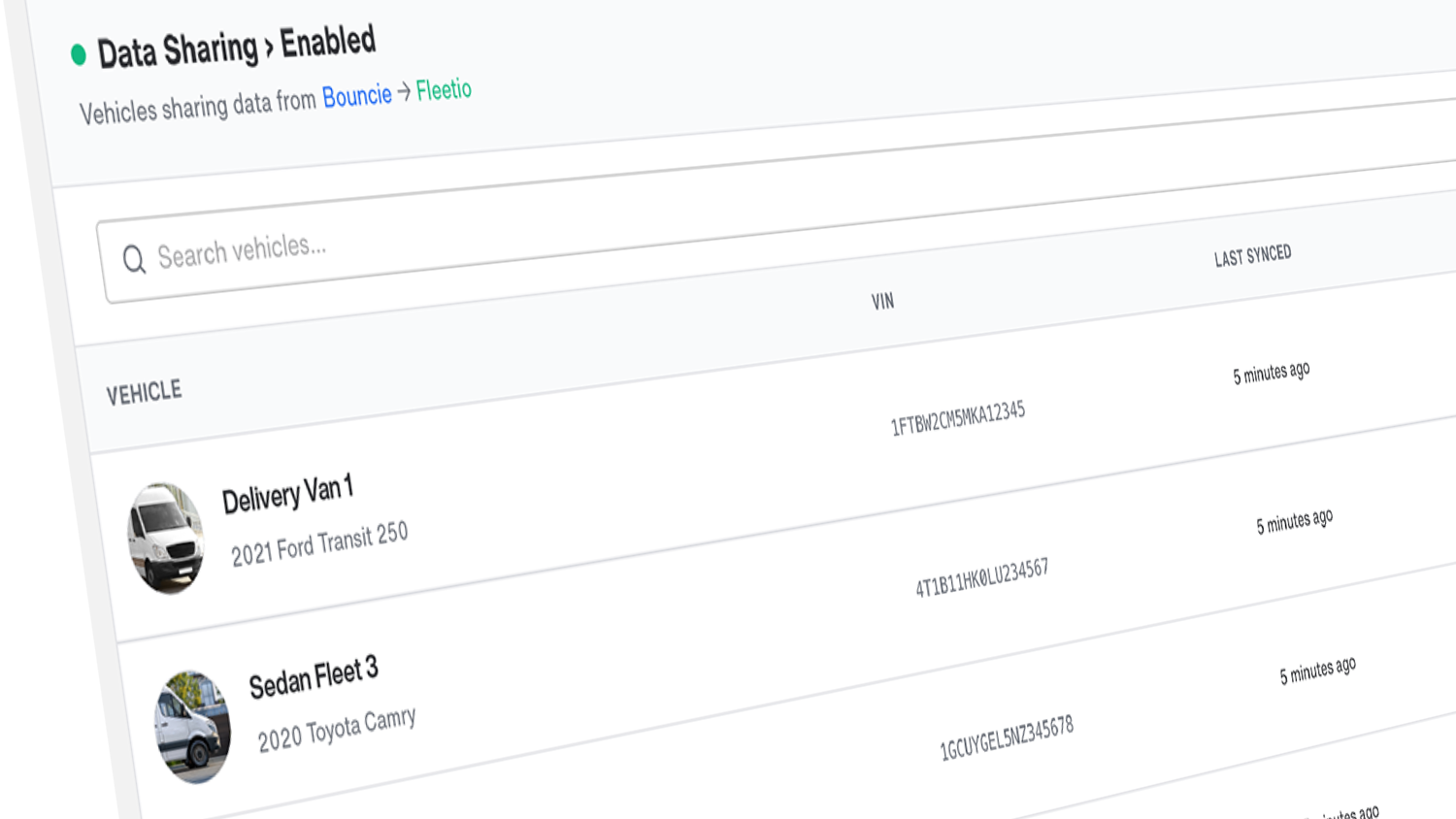
In Bouncie, scroll to Data Sharing and look under Not Configured to view available vehicles. From there, you can choose which vehicles to connect. Bouncie’s Fleetio integration page describes this step as viewing available vehicles under Data Sharing, then using the available connection options to add vehicles to Bouncie and/or Fleetio.
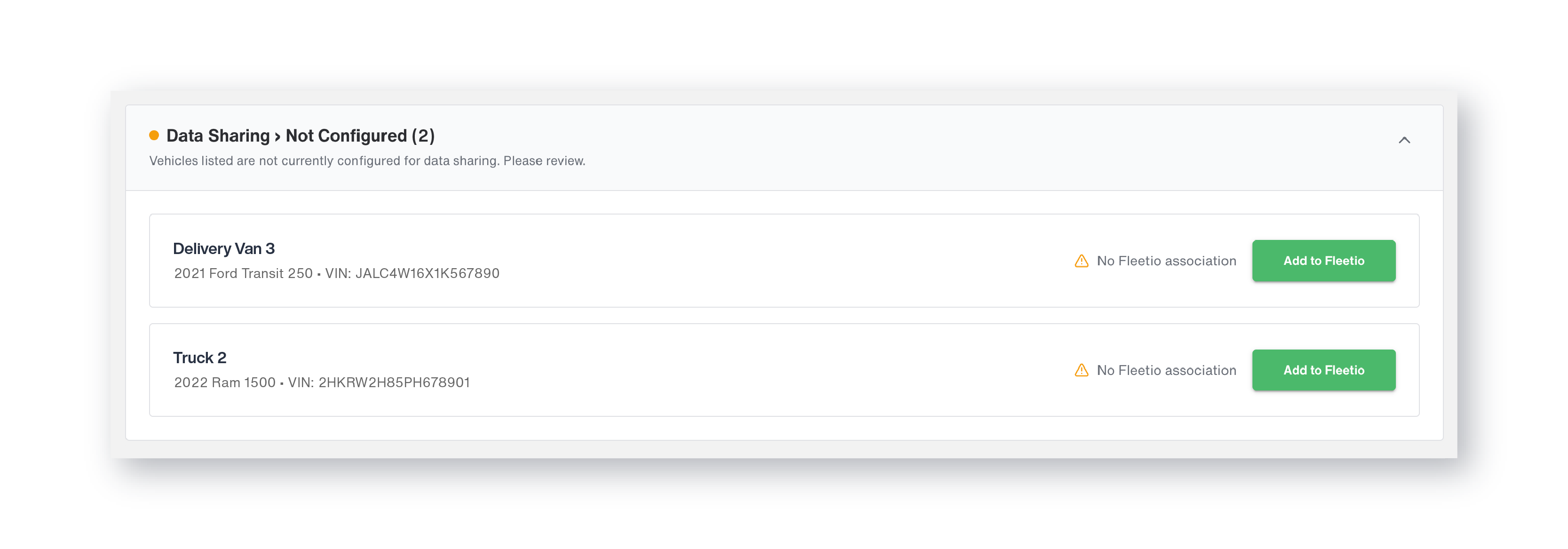
This step is where the integration becomes specific to your fleet. You may have vehicles in one platform that need to be matched or added in the other. Taking a few minutes to review vehicle names, identifiers, and availability can help prevent confusion later.
For fleets with only a few vehicles, this step may be quick. For larger fleets, it is worth being more deliberate. Confirm that each vehicle is connected to the correct record so future location, odometer, battery, and diagnostic data flows into the right place.
Step 9: Connect Vehicles Between Bouncie and Fleetio
After reviewing available vehicles, connect the vehicles you want to sync.
For each vehicle, you can select Add to Bouncie and/or Add to Fleetio during the vehicle connection process. Once vehicles are connected, they will appear under Data Sharing, in the Enabled view. If you need to stop sharing later, you can manage that from the Actions column.
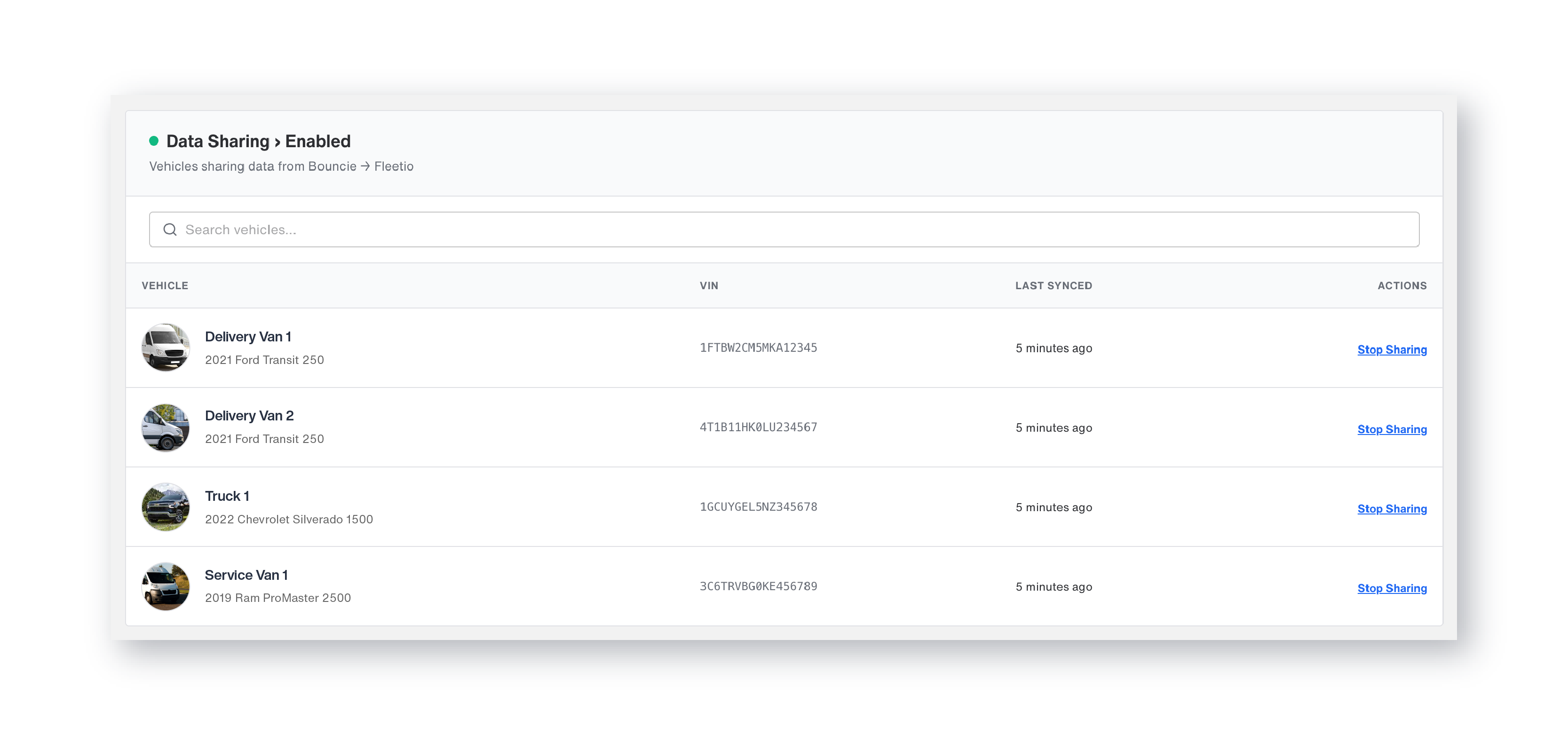
This is an important step because the integration needs to know which Bouncie-installed vehicle corresponds with which Fleetio-enabled vehicle. Once the vehicle relationship is established, data can begin flowing into the appropriate Fleetio records.
The initial sync may include data from connected vehicles, and ongoing updates will continue as Bouncie devices report new information. Bouncie’s Fleetio page explains that data can be sent through real-time updates from connected devices, when a single vehicle is first linked, and when all vehicles in an account are synced during initial setup.
What Data Syncs After Setup?
Once the integration is active, Bouncie can send several types of vehicle data into Fleetio. Each data type supports a different part of fleet visibility and maintenance planning.
GPS Location
Bouncie location updates flow into Fleetio as location entries. These entries include the date, latitude, and longitude. This helps fleet teams keep location information current without needing to manually update vehicle records.
For teams that manage service routes, mobile employees, deliveries, or vehicles across multiple job sites, location visibility helps answer basic but important questions: Where is the vehicle? Was it active today? Is it near the next job or service location?
Odometer Readings
Bouncie odometer readings sync into Fleetio as meter entries. These entries include the odometer value and date.
This is one of the most practical benefits of the integration. Preventive maintenance often depends on mileage. If odometer readings are outdated, maintenance schedules can become inaccurate. When readings sync automatically, Fleetio has a better foundation for service reminders and mileage-based workflows.
A fleet manager no longer has to rely on manual mileage checks, driver-submitted readings, or delayed updates. The system receives mileage information from actual vehicle activity.
Battery Voltage Alerts
When Bouncie detects low battery voltage, Fleetio can create an issue with a battery label. The data can include the vehicle ID, low battery voltage summary, reported date, and label reference.
This turns a vehicle health signal into an item the maintenance team can see and manage. A low battery alert might not always mean an immediate failure, but it is the kind of early warning that can prevent an inconvenient no-start situation later.
Diagnostic Trouble Codes
Bouncie sends qualified diagnostic trouble code events to Fleetio. Fleetio can create a fault rule if needed, create a fault when an issue occurs, and resolve the fault when the issue clears.
This creates a cleaner maintenance workflow because diagnostic issues do not stay isolated in a telematics system. They appear in Fleetio where the team can evaluate, prioritize, and address them as part of the broader maintenance process.
What Happens After the Integration Is Connected?
After setup is complete, the integration runs automatically in the background. Fleetio receives updated vehicle data from Bouncie on an ongoing basis, without requiring manual input from your team.
A typical workflow might look like this:
A vehicle is driven throughout the day. Bouncie captures location and odometer data from the vehicle. That information flows into Fleetio, where the odometer reading supports preventive maintenance schedules. Later, if the vehicle triggers a diagnostic trouble code, the issue can be reflected in Fleetio as a fault. If Bouncie detects low battery voltage, Fleetio can create an issue labeled for battery attention.
That workflow matters because fleet maintenance depends on timing. When data is delayed, teams may respond late. When data is current, teams can plan more confidently.
The integration also helps reduce administrative work. Instead of checking one system for telematics alerts, another for maintenance schedules, and another for records that need updating, teams can rely on connected data to support Fleetio workflows.
Troubleshooting Common Bouncie and Fleetio Setup Issues
Most setup issues come down to three things: credentials, permissions, or vehicle matching. The troubleshooting steps below address each one.
Confirm the API Key Is Active
In Fleetio, return to Settings, then Manage API Keys, and confirm that the API key created for Bouncie is active. If the key was disabled, revoked, or created incorrectly, Bouncie may not be able to connect.
Check for Extra Spaces in the Tokens
When copying and pasting credentials, it is easy to accidentally include an extra space at the beginning or end of a token. That small formatting issue can prevent the connection from working. Re-copy both the API Token and Account Token from Fleetio, then paste them again into Bouncie. Make sure the full token is included and no extra spaces are added.
Verify Fleetio Admin Permissions
The Fleetio account used for setup needs admin permissions. If you cannot access API key settings or the integration does not authenticate properly, confirm that your account has the right level of access.
Confirm Vehicles Are Available in Both Systems
If credentials are correct but vehicles are not syncing as expected, review the vehicle records in Bouncie and Fleetio. Make sure the vehicles you want to connect are available and correctly identified. This is especially important for larger fleets or accounts where vehicles may have similar names. A consistent naming structure can help your team confirm that the correct Bouncie vehicle is connected to the correct Fleetio vehicle.
Allow Time for Activity-Based Updates
Some updates depend on vehicle activity. GPS location and odometer data update as Bouncie devices report new information. Other data, such as faults and battery alerts, are created when triggered by vehicle activity. If you do not see certain data immediately, confirm that the vehicle has been active and that the Bouncie device is reporting.
Best Practices After Setup
Once the integration is connected, there are a few simple practices that can help your team get the most value from it.
First, review your Fleetio vehicle records and make sure they are clean and consistent. Connected data is most useful when vehicle names, IDs, and records are easy to understand.
Second, confirm that your preventive maintenance schedules in Fleetio are set up the way your team wants them. Since odometer readings from Bouncie can feed into Fleetio meter entries, this is a good time to make sure mileage-based maintenance intervals are accurate.
Third, decide how your team will review new issues and faults. The integration can help surface information, but your internal process determines how quickly that information turns into action. For example, your team may decide that battery-related issues should be reviewed daily or that certain DTC faults should trigger a maintenance check before the vehicle is sent back out.
Finally, make sure the right people know the integration is active. Operations, maintenance, and fleet leadership may each use the data in different ways. A brief internal communication can help each team understand where to find updated information and how it fits into their workflow.
Why This Integration Matters for Fleet Teams
The biggest benefit of integrating Bouncie with Fleetio is not just convenience. It is better alignment between vehicle activity and fleet maintenance.
Without connected systems, teams often spend time chasing information. Someone has to collect mileage, check vehicle health alerts, update records, and determine whether maintenance schedules are still accurate. That work is necessary, but it is also repetitive and easy to delay.
With Bouncie and Fleetio connected, more of that information moves automatically. Fleetio's Bouncie integration page highlights benefits that include reducing manual data entry, syncing mileage, diagnostics, and location data, supporting real-time fault code alerts, and feeding accurate odometer data into service reminders and preventive maintenance workflows.
For fleet managers, that means less time spent reconciling data. For maintenance teams, it means better visibility into vehicle health. For operations leaders, it means a more connected view of fleet performance and readiness.
It also helps growing fleets build better habits. A small fleet may be able to manage some updates manually for a while, but that approach becomes harder as the number of vehicles increases. Connecting telematics and maintenance systems helps create a more scalable process.
Get Started With the Bouncie and Fleetio Integration
The Bouncie and Fleetio integration gives fleets a practical way to connect real-time vehicle data with the maintenance workflows they already use.
For fleets using both platforms, this is a simple but valuable step toward reducing manual work, improving maintenance visibility, and making better use of the data already coming from connected vehicles.
If your fleet relies on Bouncie for telematics and Fleetio for maintenance management, connecting the two platforms brings that information together in a way that supports faster decisions and more efficient day-to-day operations.