User Management in Bouncie: How to Set Up and Manage Multiple Users
Managing multiple vehicles almost always means managing multiple people. Drivers, team leads, service staff, family members, or partners all need access, but not everyone needs the same level of control. Without the right tools, this often leads to shared logins, unclear accountability, and unnecessary risk.
Bouncie’s User Management feature was built to solve that exact problem.
With Bouncie’s User Management feature, you can invite users, assign access levels, control vehicle visibility, and manage permissions from a single centralized dashboard. Whether you oversee a small fleet, manage rental or shared vehicles, or simply have multiple drivers in your household, User Management gives you oversight without complexity.
This guide explains what User Management is, how it works in your Bouncie account, who benefits most, and the steps to set it up and manage permissions as your needs grow.
Why Managing Multiple Users Gets Complicated Fast
As soon as more than one person needs access to vehicle data, things get messy. Sharing a single login may feel convenient at first, but it quickly creates problems. There is no clear record of who made changes, access cannot be limited by role, and removing access later becomes an all-or-nothing decision.
For businesses, this lack of control can affect efficiency and accountability. For families, it can blur boundaries and create unnecessary tension. The common thread is the need for visibility paired with control.
User Management exists to bring structure to that chaos. It lets account owners control visibility, define permission levels, and grant or revoke access at any time without disrupting the primary account.
Who Benefits Most from Bouncie’s User Management
User Management supports both business operations and household vehicle oversight. It is especially valuable for small fleets and shared vehicle operators, and families benefit just as much from clear, role-based access.
Small Fleets and Growing Businesses
Small fleet managers often wear multiple hats. You may be responsible for operations, maintenance, and driver oversight all at once. User Management lets you invite drivers, supervisors, or service coordinators and assign access based on their role.
Drivers can be given visibility without the ability to change settings. Managers can have full control across assigned vehicles. This structure helps reduce confusion and keeps operations running smoothly as your fleet grows.
Rental Operators and Dealership Loaner Programs
Rental businesses and dealerships with loaner vehicles need visibility without micromanagement. User Management allows you to grant staff access to specific vehicles without exposing the entire account.
As vehicles rotate in and out of service, access can be updated quickly. This makes it easier to manage availability, monitor usage, and maintain accountability without constantly switching profiles or credentials.
Car-Sharing Hosts and Turo-Style Operators
Car-sharing and Turo hosts often manage multiple vehicles and multiple drivers at the same time. User Management makes it easy to invite co-hosts or team members and assign them access to the vehicles they are responsible for.
Instead of sharing one login, each person has their own access level. That means clearer oversight, better organization, and fewer mistakes when managing bookings or vehicle activity.
Families With Multiple Drivers
Families face many of the same challenges as small fleets. Parents want visibility into vehicle location and driving activity, but teens and other drivers do not need full control of settings.
User Management allows families to share access thoughtfully. Parents retain full access while other drivers can be given view-only permissions. This supports trust, accountability, and better communication without feeling intrusive.
How to Access User Management in Your Bouncie Account
Setting up User Management in your Bouncie account takes just a few steps. While logged into the Bouncie app or web platform, open the main menu in the upper left corner and select User Management from the list of account options. From there, you will see a dashboard that displays active users, invited users, and available actions. This centralized view makes it easy to manage access without digging through individual vehicle settings.
Inviting New Users
Inviting users is the first step in configuring User Management. From the User Management dashboard, click Invite Users, enter the user’s email address, select the vehicles they should access, and choose the appropriate permission level. When everything looks good, click the Send Invitations button.
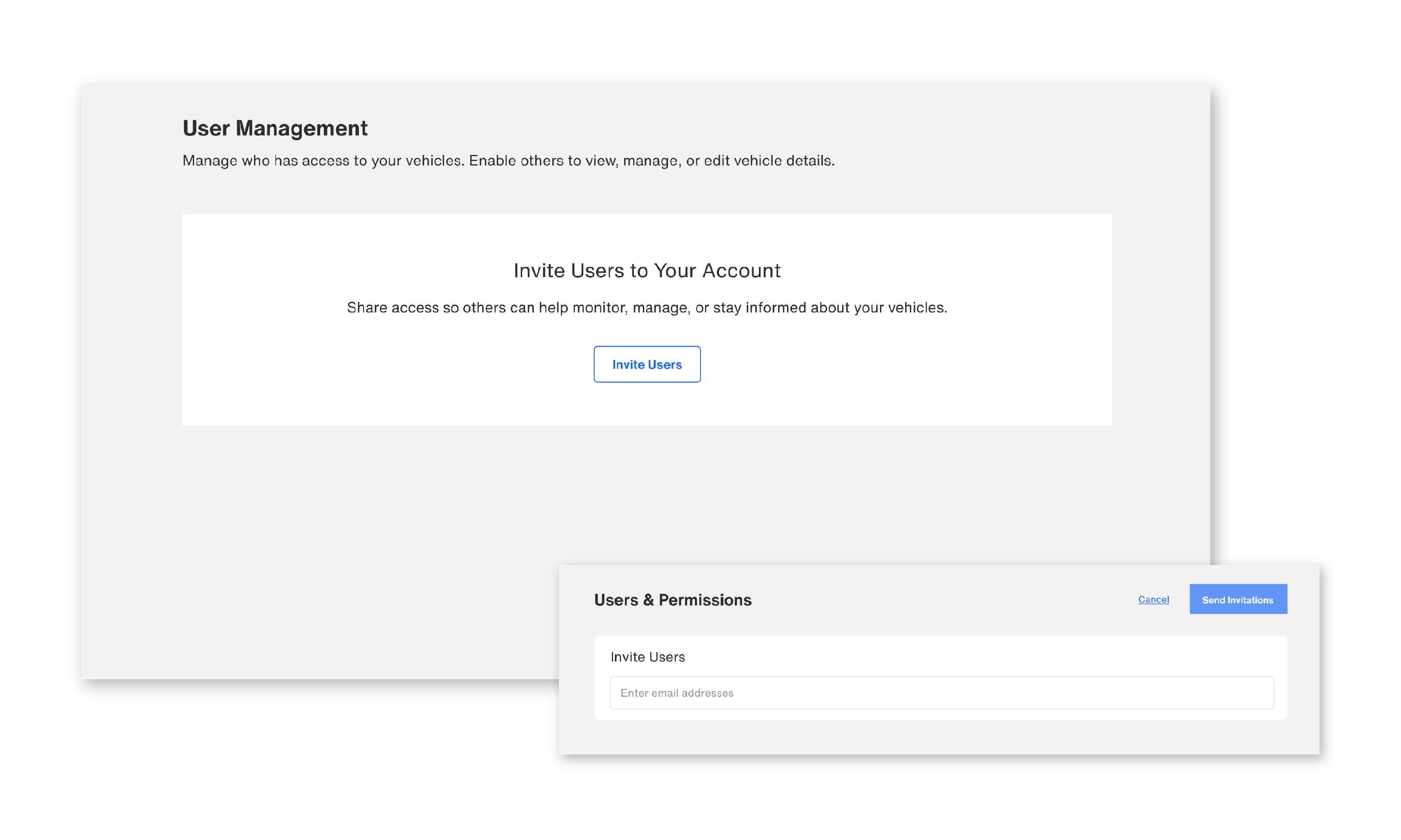
If needed, you can add multiple email addresses at once. Users who are invited together will receive access to the same vehicles. This is especially helpful when onboarding drivers, team members, or family users in batches.
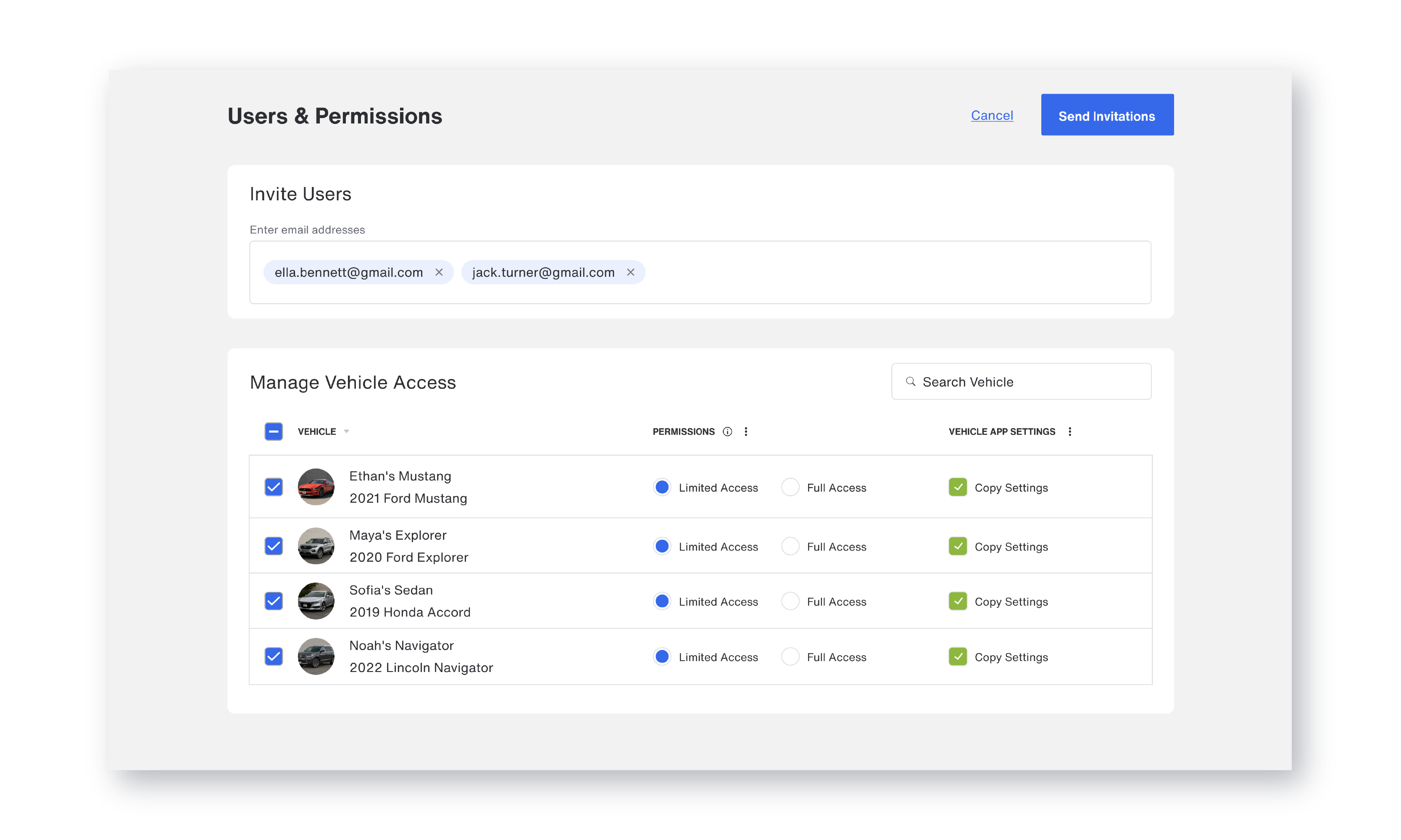
Once invited, users will appear in your dashboard that shows either an Invited status, or an Active status. A user moves from Invited to Active once they have accepted your invitation and set up their Bouncie login.
Understanding User Status: Invited vs Active
User Management clearly indicates whether each user has accepted access.
An invited user has received an email invitation but has not yet accepted it. This status helps you track onboarding and follow up if access is time-sensitive.
An active user has accepted the invitation and can access the vehicles and features assigned to them. This distinction is especially useful for businesses managing seasonal staff, contractors, or rotating drivers.
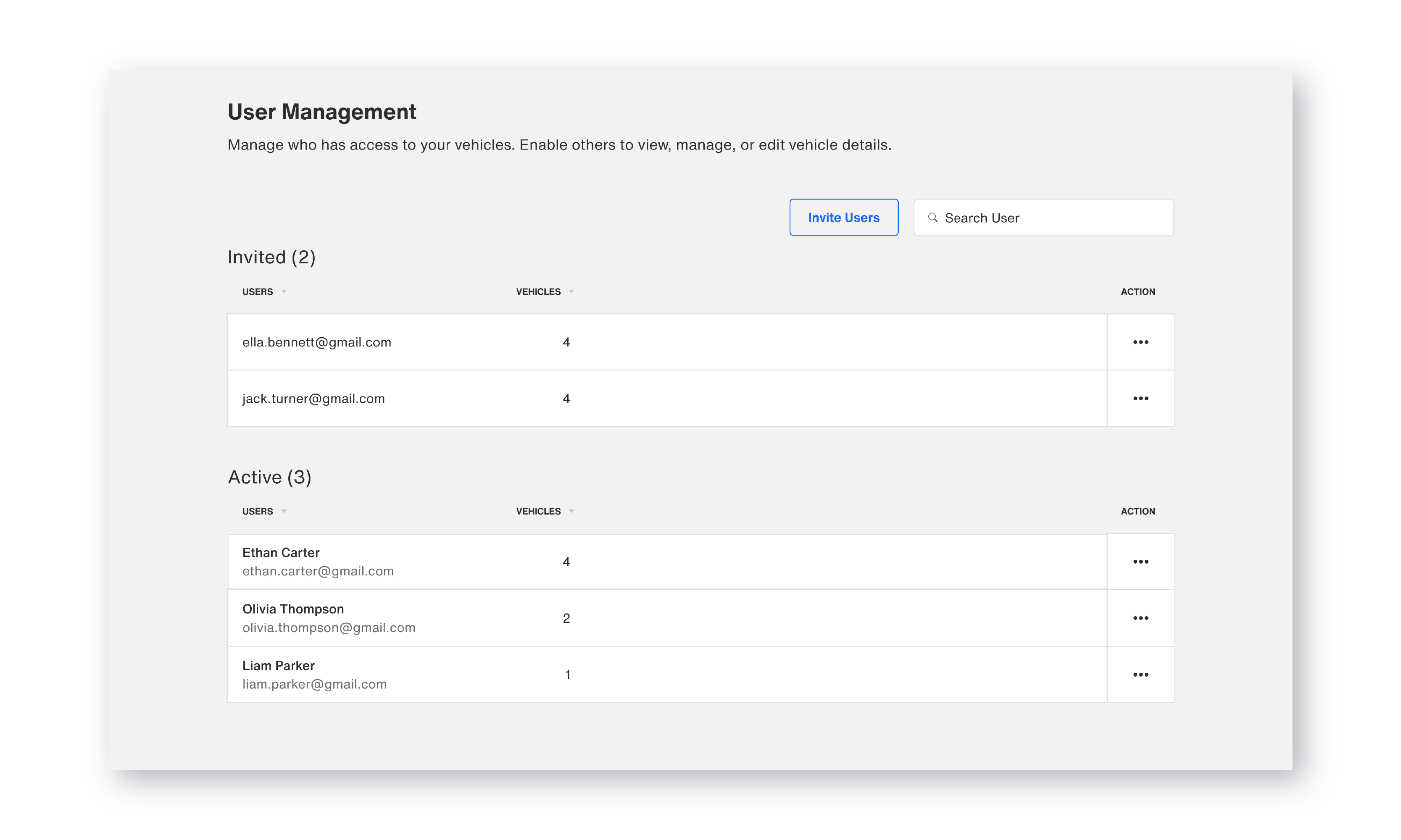
User Management dashboard in Bouncie showing Invited and Active user status for multiple vehicles
Viewing User Permissions
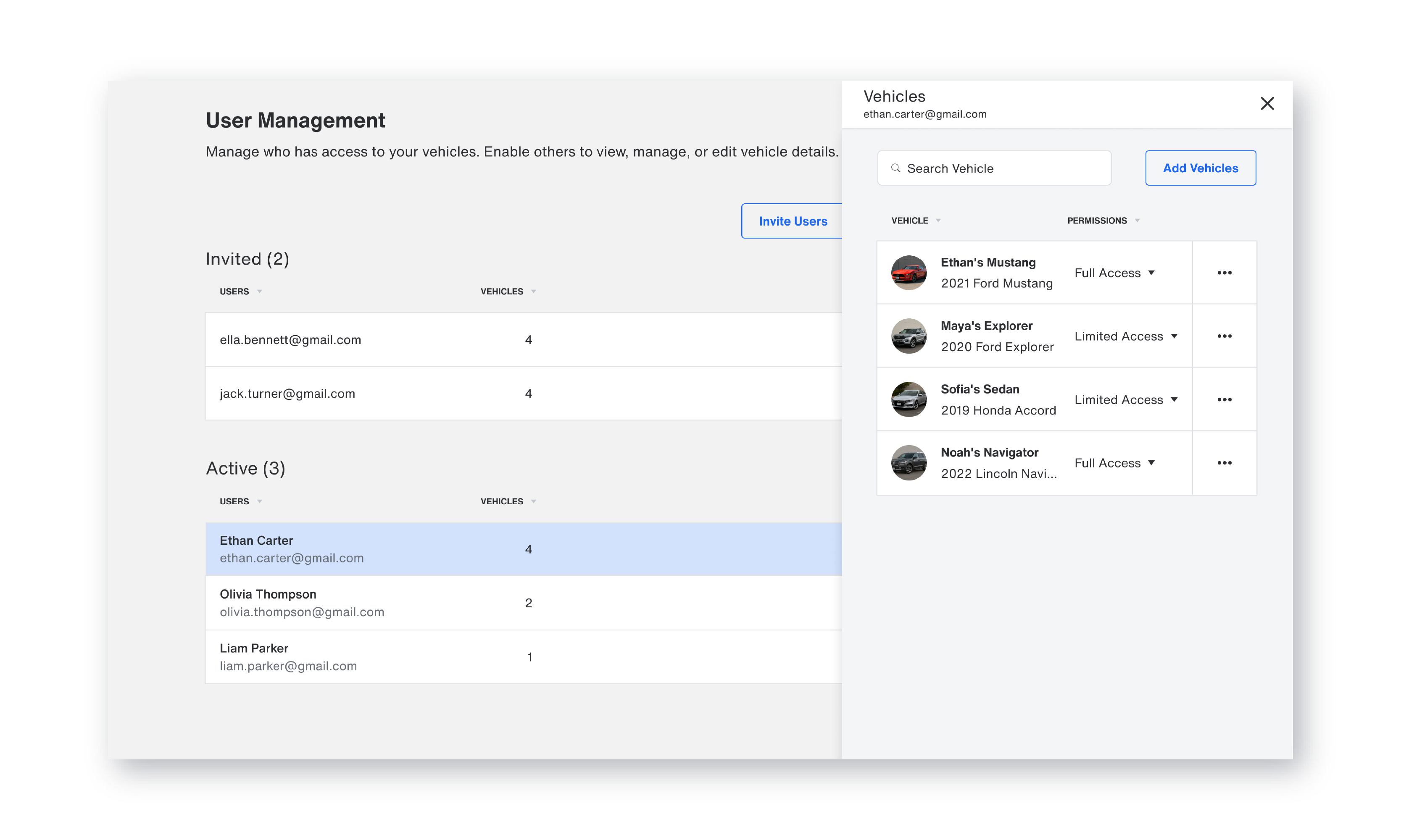
To review a specific user’s access, select their name in the Active Users list. A panel will slide in from the right, displaying all vehicles the user can access along with each vehicle’s assigned permission level. This view provides immediate clarity. You can see exactly who has access to which vehicles and what level of control they have.
If your account includes many users, the search field in the upper-right corner makes it easy to find a specific person quickly.
Editing User Permissions
Access needs can change over time. User Management is designed to make updates quick and intuitive. Permissions can be adjusted when needed, making it easy to respond to staffing changes, role shifts, or evolving family needs.
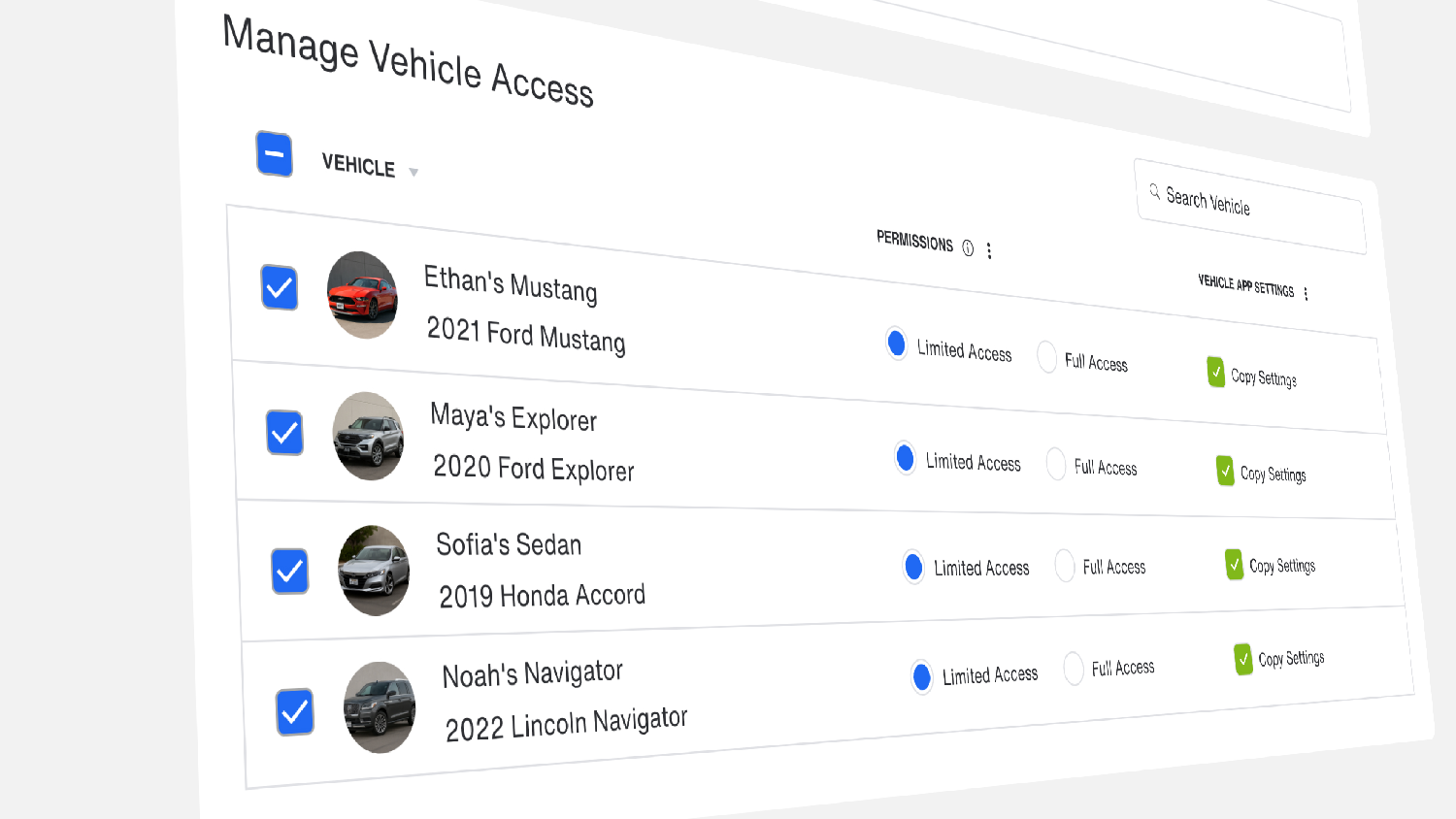
Select a user from the Active Users list to review and update their permissions. Within the access panel, each vehicle shows the current permission level along with a dropdown menu that allows you to make changes.
User Management offers two permission levels that determine what each user can do:
- Limited Access: View-only access that allows users to see vehicle information without managing or editing settings. Trip data cannot be deleted.
- Full Access: Users can view, manage, and edit vehicle settings, including permissions.
This structure allows you to tailor access by role. Drivers and family members often only need Limited Access. Fleet managers, administrators, or owners may require Full Access to oversee operations.
Reviewing and Managing Assigned Vehicles
Within a user’s access panel, you can use the three vertical dots next to each vehicle to add additional vehicles to their access. This added layer of control helps ensure users only interact with the vehicles relevant to their role.
For businesses, this means protecting sensitive settings while still providing necessary visibility. For families, it means maintaining boundaries while encouraging responsible use.
Removing or Deleting User Access
From the User Management dashboard, tap the ellipsis in the Actions column next to the user and select the option to remove their access. This immediately revokes their permissions without affecting other users or vehicles.
This flexibility is especially useful for temporary staff, short-term drivers, or changing family arrangements.
Everyday Uses for User Management
User Management is not just a setup feature. It supports daily vehicle oversight and ongoing operational control. Instead of one-size-fits-all access, each person gets the right level of involvement.
- Fleet managers can share access with drivers while retaining control over account settings.
- Service staff can view vehicle status without making changes.
- Team leads can oversee specific vehicles without being overwhelmed by unnecessary data.
- Families can share access with new drivers, monitor vehicle usage, and adjust permissions as responsibilities grow.
Why User Management Is a Standout Feature With Bouncie
User Management in Bouncie is powerful because it is flexible, scalable, and easy to use.
There is no added cost to invite additional users. Access scales with your needs, whether you manage two vehicles or 20. Different access levels support better control and privacy. Centralized visibility across all vehicles means no profile switching or login sharing.
Most importantly, User Management integrates directly into your existing Bouncie account without requiring additional tools or logins. It enhances tracking, accountability, and collaboration without adding complexity. For businesses managing multiple vehicles, this level of control pairs seamlessly with Bouncie’s fleet tools, making it easier to grow without growing pains.
Frequently Asked Questions About User Management
Can different users have different permissions per vehicle?
Yes. Permissions can be assigned per user for each vehicle they can access, allowing you to customize access based on role and responsibility.
How do I revoke or update a user’s access?
You can update permissions at any time from the User Management dashboard. Access can also be removed instantly using the ellipsis menu.
Is there a limit to how many users I can add?
No. You can invite as many users as needed without additional fees.
Do users need to install the Bouncie app to access vehicle data?
Users can access Bouncie using the web platform or the mobile app. It is up to the user how they access the vehicle data.
Can I change permissions without removing a user?
Yes. Permissions can be adjusted without removing the user from your account, making it easy to adapt as roles change.
Simple Setup, Scalable Oversight
Managing access across multiple users and vehicles does not have to be complicated. With Bouncie’s User Management feature, you gain the flexibility to share access thoughtfully, maintain control, and scale with confidence.
Whether you are overseeing a growing fleet, managing shared vehicles, or coordinating drivers within your family, User Management gives you the structure you need without sacrificing simplicity.
Explore the Bouncie GPS tracker for vehicles to centralize oversight, assign user access, and manage your vehicles with confidence.